Custom fields for user profiles
UsersUpdated September 24, 2026
The default user profile covers name, email, and role — but most organizations need to track more than that. Custom fields let you add whatever else your reporting depends on: staff number, department, cost centre, or anything else specific to how your tenant operates.
Before you start
You need the Admin role.
Add a custom field
- Go to your user management settings and find Custom fields.
- Click New field and choose a field type — text, number, date, or a dropdown of preset options.
- Name the field (for example, Staff number or Department) and decide whether it's required when creating or inviting a user.
- Save. The field now appears on every user's profile, and on the invite/create-user form.
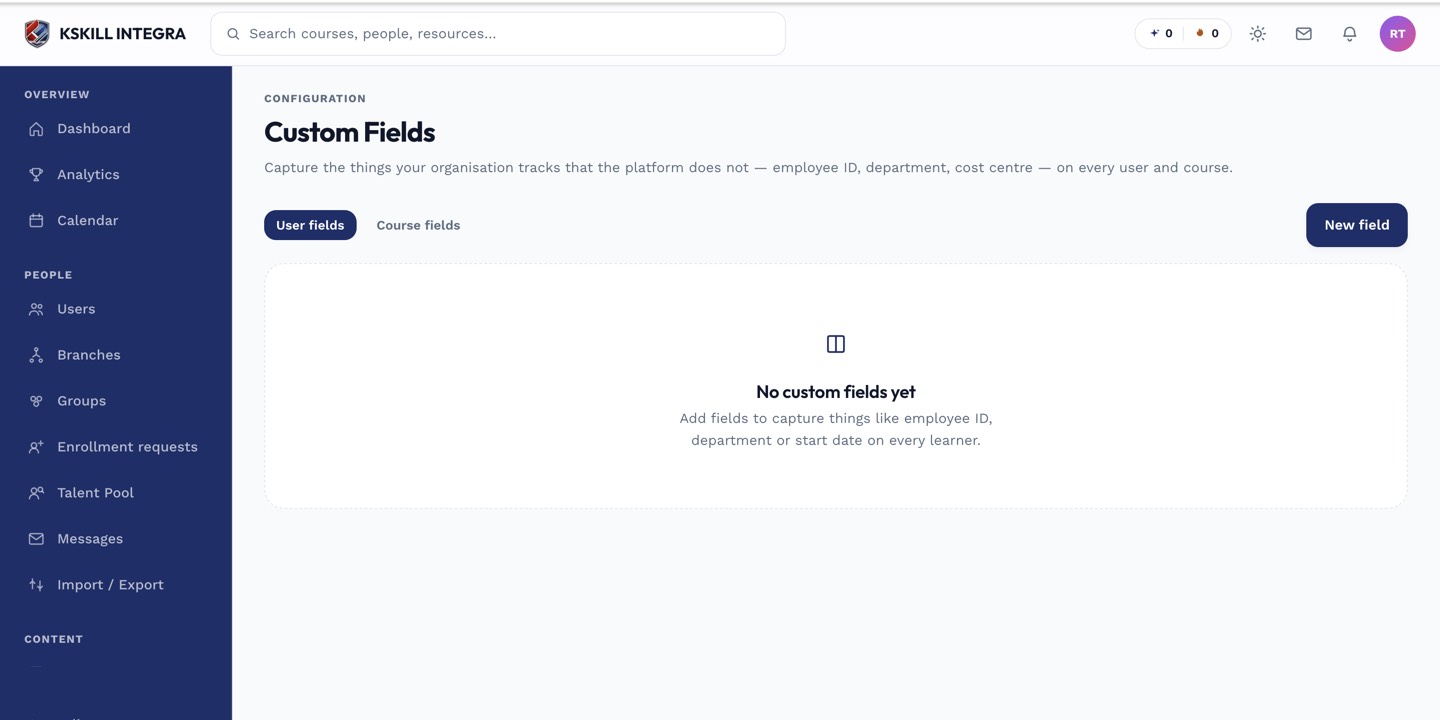 Field order here matches the order fields appear on the user form.
Filling them in
Custom field values are set per user, either when inviting them or by editing an existing profile. They show up alongside the standard profile fields.
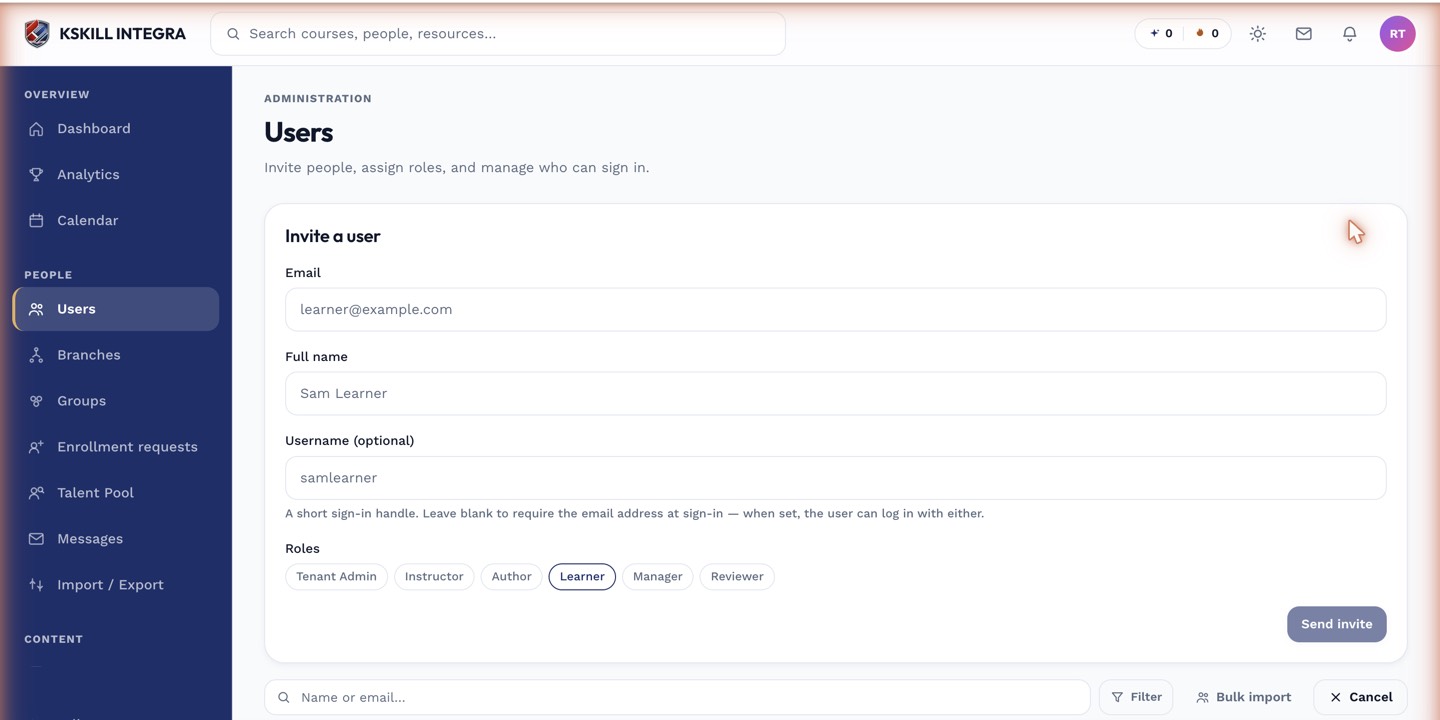 Required custom fields block the invite from being sent until filled in.
Notes
Custom fields are tenant-wide — every user shares the same set of fields, though individual values differ per person. They're commonly used to filter or group users in reports.
What next?
#custom-fields#users#profiles#reporting