Reset a user's password
If a user is locked out and cannot reach the self-service reset flow, an admin can force a reset. This article covers how.
Before you start
You need the Admin role. Email delivery must be configured or the reset link goes nowhere.
Step 1 — Open the user profile
Open People → Users and click the user. The profile page has a Reset password action in the header's overflow menu.
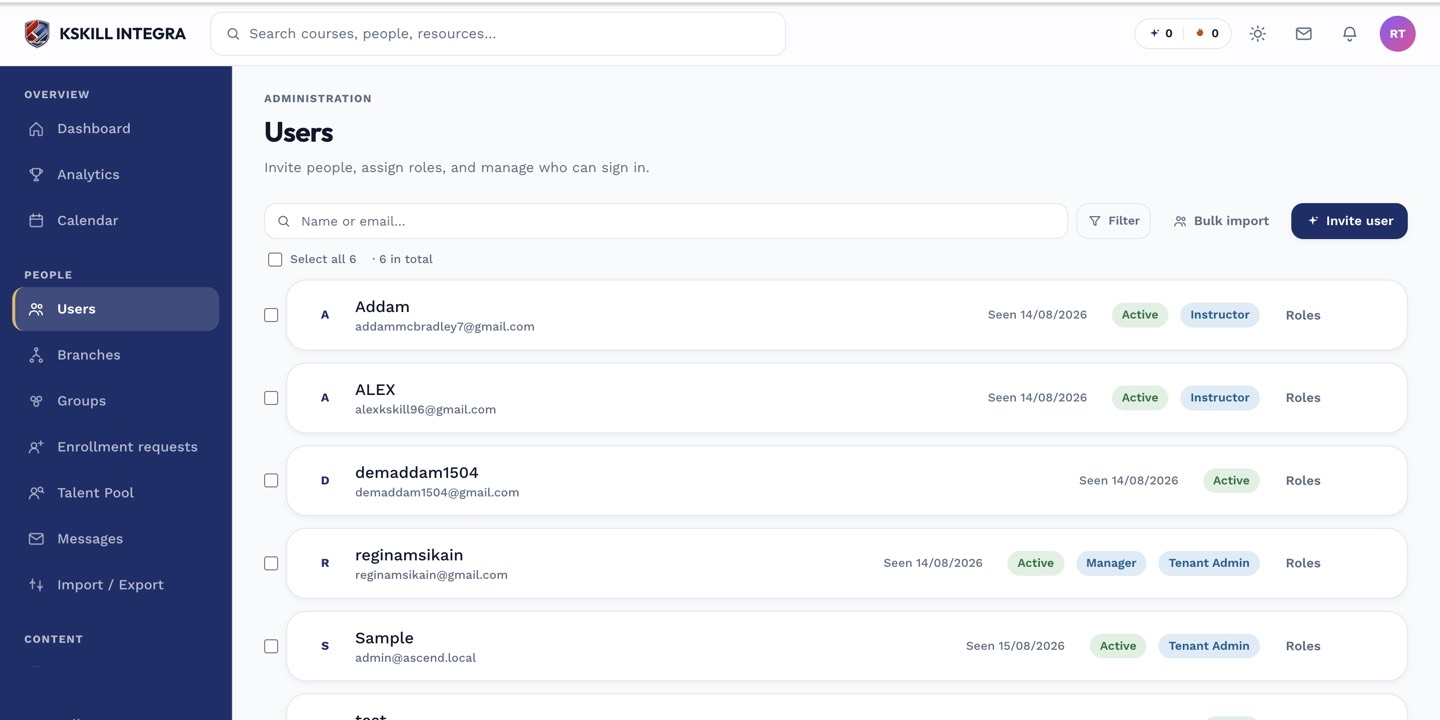
The Users list is the entry point for every person-related admin task.
Step 2 — Send the reset link
Click Reset password. Keycloak emails a single-use reset link to the user's registered email address. The link expires in an hour — tell them to click it soon. Their old password stops working the moment they set a new one.
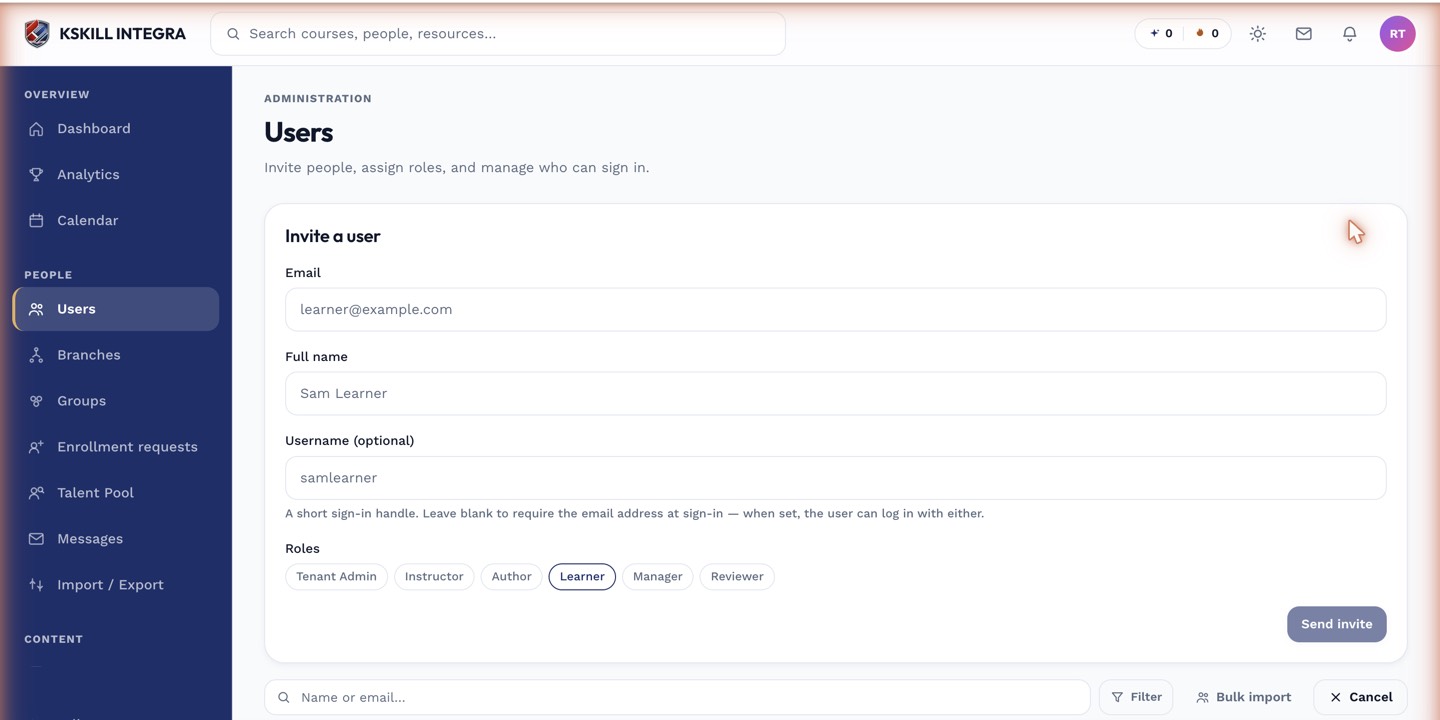
The invite drawer is the same shape whichever role you assign.
Step 3 — If the email never arrives
Check the tenant's Email delivery logs first. If email is broken, you can copy the reset link straight from Keycloak's admin console and hand it to the user through another channel. Only do this in emergencies — the link bypasses the user's inbox.
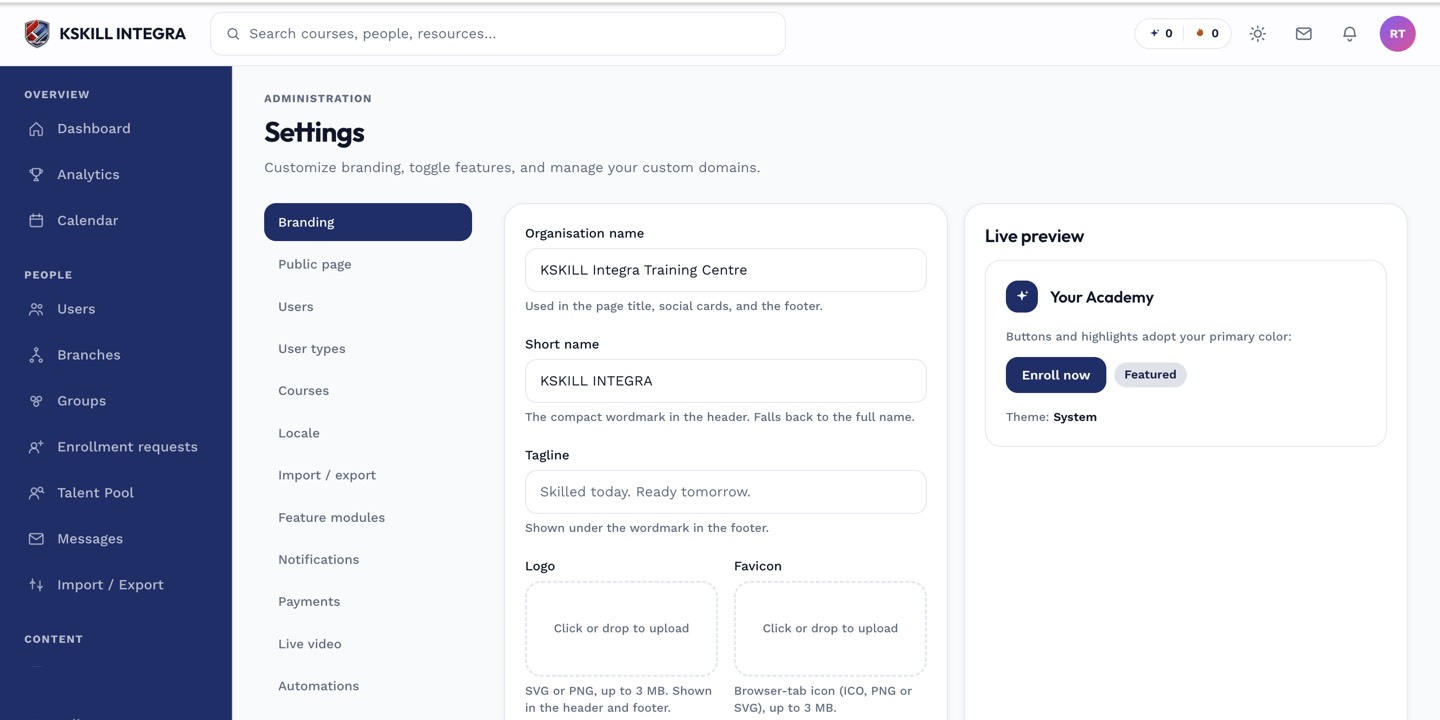
The Settings page is the single home for every tenant-level toggle.
Notes
- Admins cannot see or set passwords directly — Keycloak owns credentials.
- For SSO tenants, password reset goes through your identity provider instead.