Writing your own Knowledge Base articles
SupportUpdated September 24, 2026
The Help Center you're reading right now isn't fixed content — as a tenant admin, you can add your own articles alongside the platform-wide ones, covering things only your organization needs: internal policy, a local contact number, or branch-specific instructions.
Creating an article
- Open Manage → Knowledge Base.
- Click New article.
- Give it a title, pick a category, and write the body.
- Publish — it appears in the Help Center next to platform-wide articles, tagged as your own.
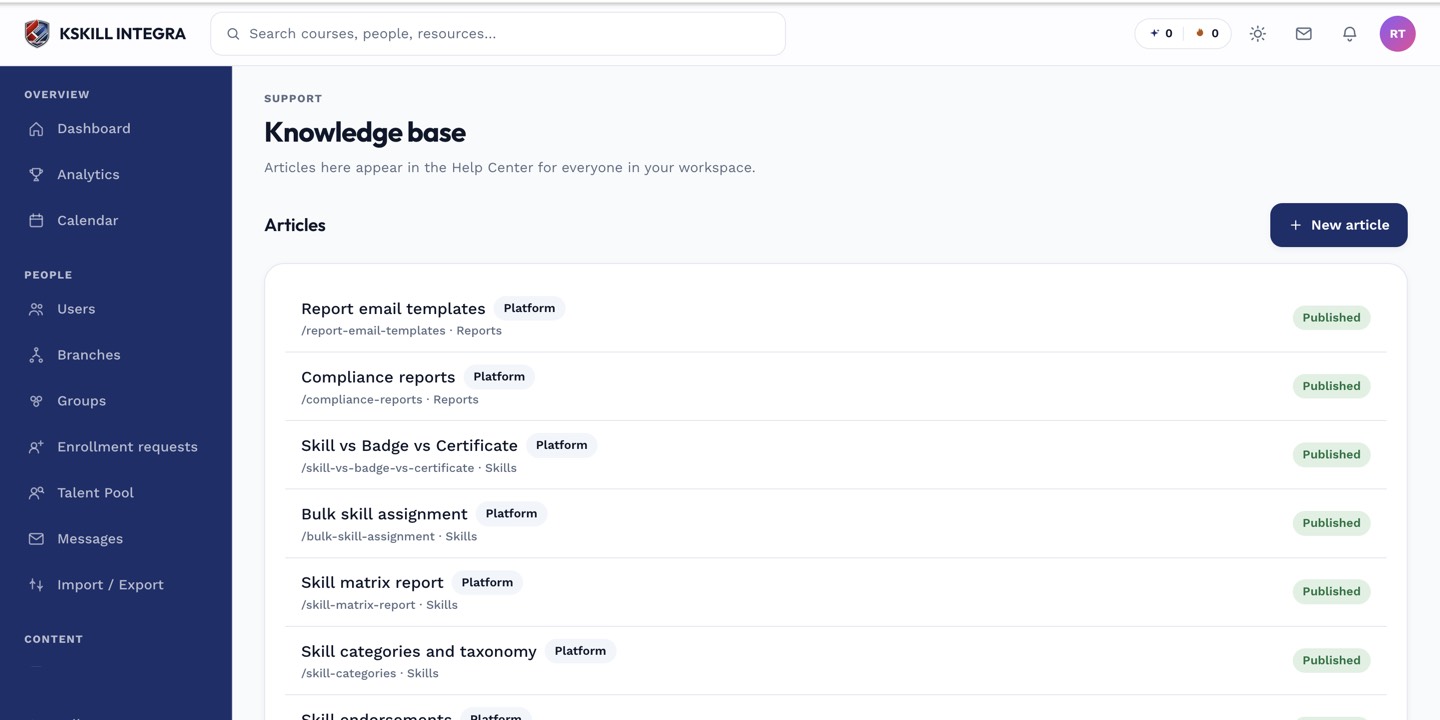 Tenant-owned articles sit in the same list as platform-wide ones, but only yours are editable here.
What you can and can't edit
You can edit or remove any article your own tenant created. Platform-wide articles — the general how-to content that ships with every tenant, including this one — are read-only from this screen; they aren't yours to change.
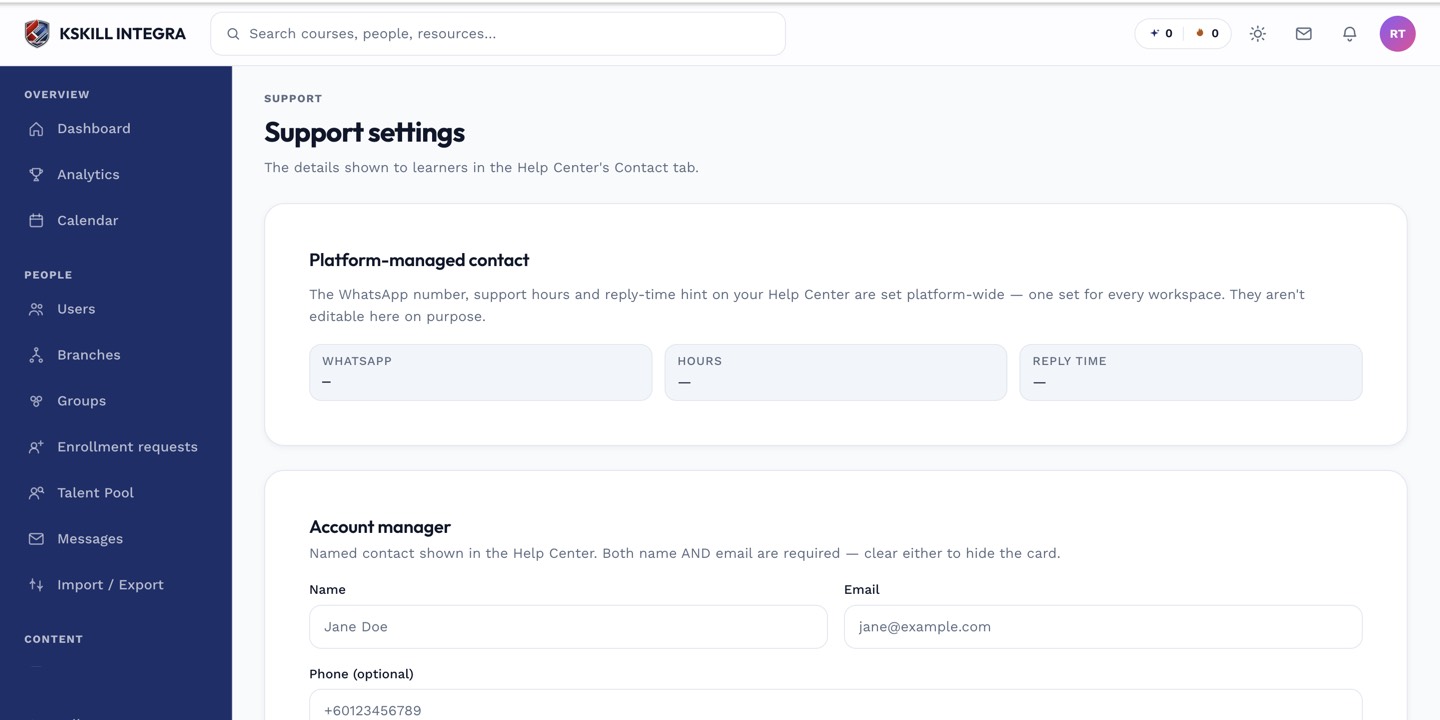 Knowledge Base management lives near your other support-facing admin tools.
Good uses for a tenant article
- A local escalation contact that platform-wide docs can't know about.
- Branch- or region-specific policy that doesn't apply to every tenant.
- Internal process notes for your own instructors or support staff.
Notes
Tenant articles are visible to your own learners and staff, not to other tenants — this is not a way to publish to the platform-wide Help Center.
What next?
#kb#knowledge-base#docs#admin#help-center